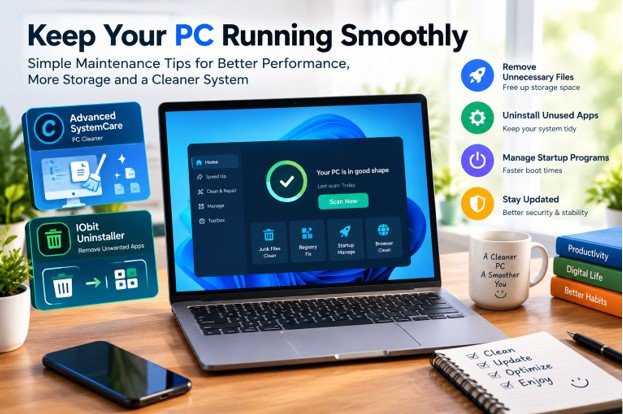
A computer that once felt fast can gradually become slower and less responsive. Applications may take longer to open, storage space can disappear unexpectedly, and background programs may consume resources even when they are not needed. Although these issues can sometimes indicate aging hardware, everyday software habits and a lack of routine maintenance can also contribute to poor performance.
The good news is that keeping a computer in good condition does not always require expensive upgrades. Simple maintenance practices, such as reviewing installed applications, managing startup programs, removing temporary files, and keeping software updated, can help create a smoother computing experience.
Understanding these practices is useful whether you use a PC for work, studying, gaming, or everyday browsing.
Why Regular PC Maintenance Matters
A computer relies on several interconnected components to operate efficiently. The operating system manages memory and processes, applications use system resources, and storage holds everything from essential system files to personal documents.
Over time, unnecessary applications, accumulated temporary files, and excessive background activity can make everyday tasks less convenient. Some programs launch automatically when Windows starts, extending startup time and using memory before you even begin working.
Regular maintenance helps you identify these issues before they become persistent frustrations. It also provides an opportunity to review which applications you actually need and whether your computer’s available storage is being used efficiently.
Maintenance will not solve every performance problem, however. A failing drive, insufficient memory, overheating, or outdated hardware may require a different solution.
Use a PC Cleaner to Manage Unnecessary Files
Temporary files can accumulate as you browse the internet, install applications, and use different programs. Some temporary data is useful because it helps applications load information more quickly, but unnecessary files can consume storage space without providing much ongoing value.
A PC cleaner can help users review certain areas of their system and identify files or other items that may be suitable for cleanup. Depending on the software, available features may include temporary-file cleanup, privacy-related cleaning, and tools for reviewing system conditions.
Before removing anything, it is important to understand what the software has identified. Temporary files are not all useless, and deleting the wrong files can interfere with applications or remove information you intended to keep.
For Windows users, built-in tools such as Storage settings and Disk Cleanup can also help remove unnecessary files. These options are worth exploring before installing additional software.
A sensible cleanup routine should focus on recovering useful storage space and reducing clutter rather than promising dramatic speed improvements from every scan.
Review Installed Applications Regularly
Many computers contain applications that were installed for a specific task and never used again. Others may arrive bundled with software packages or remain after a trial period ends.
Unused applications can occupy storage space, add background processes, create scheduled tasks, or install components that are no longer necessary. Reviewing your installed software every few months can help keep your system organized.
Start by opening Windows Settings and navigating to the installed applications list. Check the names of programs you recognize, consider when you last used them, and determine whether you still need them.
Avoid removing unfamiliar system components simply because their names are unclear. Some applications provide essential drivers, hardware controls, or shared services required by other software.
When an Uninstall Tool Can Help
The standard Windows uninstall process is suitable for many applications. However, some programs leave behind configuration files, folders, browser extensions, or other components after removal.
An uninstall tool can provide additional options for managing unwanted applications. Depending on its features, it may help remove programs and identify certain leftover items associated with the uninstall process.
For example, someone who regularly tests different applications might find it useful to have a dedicated interface for reviewing installed software and handling removals.
IObit Uninstaller is one option in this category. Users should review the available removal options carefully and check any items marked for deletion before confirming an action. Removing shared components or unfamiliar files without understanding their purpose can cause other programs to malfunction.
It is also wise to create a restore point before making significant system changes, particularly when removing older applications or software that interacts closely with Windows.
Manage Startup Programs for a Smoother Start
A computer may take longer to become ready because numerous applications attempt to launch during startup. Messaging applications, cloud storage clients, game launchers, and update utilities can all add to the workload.
Reviewing startup programs is a straightforward way to understand what runs automatically.
Open Task Manager in Windows and select the Startup apps section. Review the listed programs and their startup impact. If an application does not need to run immediately after sign-in, you may be able to disable its automatic startup.
Do not disable essential security software, hardware utilities, or processes whose purpose you do not understand. Some programs need to run in the background to provide important functionality.
The objective is not to prevent every application from starting automatically. It is to ensure that startup behavior reflects your actual needs.
Keep Windows and Applications Updated
Updates can provide security fixes, resolve bugs, and improve compatibility. Ignoring updates for long periods may leave known problems unresolved or create compatibility issues with newer software.
Check Windows Update periodically and install updates from trusted sources. Applications should also be updated through their official update mechanisms whenever possible.
Drivers deserve attention too, especially when troubleshooting hardware problems involving graphics, audio, networking, or connected devices. However, installing every available driver update without a specific reason is not always necessary. Prioritize official manufacturer sources and updates that address your hardware or an issue you are experiencing.
Before major updates, make sure important files are backed up and that the computer has sufficient free storage.
Protect Your PC While Improving Performance
Computer maintenance should include security as well as performance. Unexpected pop-ups, unfamiliar browser extensions, and programs that appear without your knowledge can indicate unwanted software or other problems.
Use reputable security software, keep real-time protection enabled, and download applications from trusted websites. Be cautious with installers that offer optional extras, and read each installation screen rather than accepting every default selection.
If a computer suddenly becomes slow, investigate the cause instead of immediately deleting files or installing several optimization tools. Check Task Manager for applications using unusually high amounts of CPU, memory, or disk resources. Run a security scan if you suspect unwanted software.
Making changes one at a time also helps you identify which action actually improves the situation.
Build a Simple Maintenance Routine
You do not need to spend hours maintaining your computer. A short, consistent routine can help you stay organized.
- Weekly: Install important security updates when appropriate and review any unusual system behavior.
- Monthly: Check available storage, review startup applications, and remove files you no longer need.
- Every few months: Review installed applications and uninstall programs that are no longer useful.
- When problems appear: Check resource usage, investigate error messages, and run security scans when necessary.
- Before major changes: Back up important files and consider creating a Windows restore point.
The right schedule depends on how frequently you use your PC and the kinds of applications you run.
Final Thoughts
Keeping a PC running smoothly is largely about making informed decisions rather than constantly installing new optimization software. Managing unnecessary files, reviewing startup applications, removing unused programs, and maintaining current software can help keep a computer organized and easier to use.
A PC cleaner may help with selected cleanup tasks, while an uninstall tool can offer additional options for removing unwanted applications. Neither replaces good maintenance habits, reliable backups, or proper diagnosis when hardware or software problems occur.
By following a practical routine and checking changes before applying them, you can make better use of your computer and reduce avoidable performance frustrations over time.