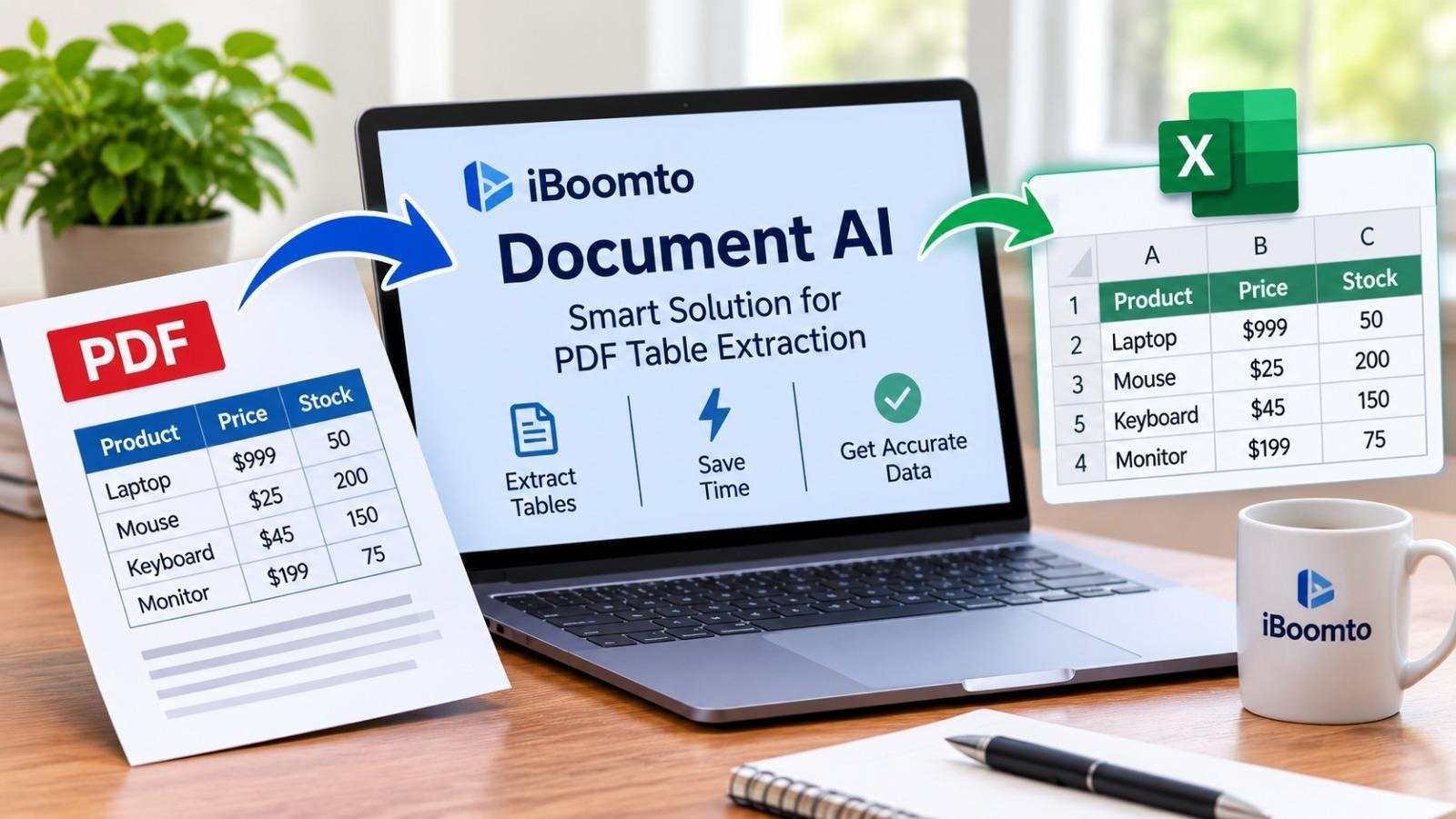
PDF documents are widely used to share reports, financial statements, research papers, invoices, and business records. Although this format preserves document layouts, extracting information from tables can be challenging, particularly when the original files contain scanned pages or images instead of selectable text. Manually copying rows and columns into spreadsheets is time-consuming and increases the possibility of errors.
A more workable alternative is offered by automated table extraction technology and optical character recognition (OCR). They help transform information stored in PDF documents into structured data that can be reviewed, organized, and analyzed. However, successful extraction is only the beginning. Users must also verify important details such as decimal points, missing rows, measurement units, and calculated totals.
With tools such as a PDF table extractor and iBoomto Document AI users can simplify document processing and develop a more reliable workflow for handling information.
Understanding OCR and PDF Table Extraction
Optical Character Recognition, commonly known as OCR, is a technology that identifies text inside images and scanned documents. Instead of treating a scanned PDF page as a single picture, OCR examines its visual content and converts recognizable characters into digital text.
Table extraction takes this process further by identifying the relationships between individual cells, rows, and columns. For example, a scanned financial report might contain product names, quantities, prices, and totals. An extraction system attempts to preserve these relationships when converting the information into a structured format.
A PDF table extractor is particularly useful when working with documents containing multiple pages, complicated layouts, or scanned records. Depending on the tool, users may export extracted information into Excel, CSV, or JSON for additional processing.
Nevertheless, OCR is not always perfect. Poor image quality, unusual fonts, overlapping lines, and handwritten notes can affect recognition accuracy.
Why OCR Quality Checking Is Important
Even a small recognition mistake can create significant problems when working with business or research data. For instance, an OCR system might interpret 8.50 as 850 or overlook a row between two sections of a table.
These errors can affect financial calculations, inventory records, research findings, and business decisions.
Before using extracted information, follow a quality checklist covering the following areas.
1. Verify Decimal Points
Decimal errors are among the most important issues to investigate. A value such as 12.75 could accidentally become 1275 if the decimal point is not recognized correctly. Review prices, percentages, measurements, and other numerical values against the original PDF.
2. Check for Missing Rows
Multi-page documents sometimes contain tables that continue from one page to another. Inspect page transitions carefully to make sure no rows have been skipped or duplicated. Compare the number of extracted entries with the original document.
3. Confirm Measurement Units
Numbers without their associated units can be misleading. Check whether measurements represent kilograms, meters, dollars, percentages, or other quantities. Make sure units remain consistent throughout the extracted dataset.
4. Recalculate Totals
Compare subtotals, grand totals, averages, and other calculations with the original document. If the extracted values do not match, investigate possible recognition mistakes or missing entries.
5. Review Column Alignment
Ensure that every value appears under the correct heading. A misplaced number can change the meaning of an entire record, even when OCR recognizes the individual characters correctly.
Introducing iBoomto Document AI
iBoomto Document AI is designed to make document processing more accessible through artificial intelligence. It is a Windows-based document AI solution that supports online and local AI models, providing users with different options for handling document-related tasks.
An important distinction is that extracting information and analyzing that information are two separate activities.
OCR and table extraction focus on converting document content into structured data. Further analysis involves interpreting that data, identifying patterns, comparing values, or summarizing information. AI models can assist with the second stage after the extracted content has been checked.
The availability of online and local models gives users flexibility when choosing their document-processing workflow. Local processing can be useful for people who prefer working with files on their own computers, while cloud-based models can provide another option for AI-assisted tasks.
The platform also emphasizes privacy-conscious document processing and offers its Windows tool at no cost, without token limits. Users should review the applicable processing settings and model requirements before working with sensitive documents.
How to Extract Multi-Page Tables from a PDF Online
An online PDF table extraction workflow can save considerable time when dealing with scanned reports and lengthy documents. The following steps provide a practical approach.
Step 1: Prepare Your PDF
Select the PDF file that has the tables you wish to extract. Make sure the pages are readable and correctly oriented. If the document contains low-quality scans, improving the image resolution may help OCR recognize the text more accurately.
Step 2: Open an Online Extraction Tool
Visit the relevant online PDF table extraction tool. Select the PDF upload option and choose your document from your device. Check the available file-size and page-count restrictions before uploading larger documents.
Step 3: Select the Required Pages
If the document contains multiple pages, select the pages containing the relevant tables when the tool provides page-selection options. Some tables continue across several pages, so include every page needed to preserve the complete dataset.
Step 4: Start the Extraction Process
Start the conversion procedure and let the system examine the file. OCR identifies text within scanned pages, while table recognition attempts to organize that text into rows and columns.
Step 5: Choose an Export Format
After extraction, select the format that suits your project. Excel is useful for spreadsheet calculations, CSV works well for data exchange, and JSON is suitable for structured information used in applications and development workflows.
Many online extraction tools support fast conversion from PDF tables to Excel, CSV, or JSON without requiring signup. Available features and limitations may vary depending on the service.
Step 6: Validate the Results
Open the exported file and compare important values with the original PDF. Check decimal points, missing rows, units, headings, and totals before using the data in reports or business decisions.
Download the Free iBoomto Windows Tool
For users who regularly work with PDFs and other document formats, a dedicated desktop application can provide a convenient working environment.
The free iBoomto Document AI Windows tool offers document-processing capabilities alongside support for online and local AI models. It is intended for users who want to work with documents and explore AI-assisted workflows without paying for a token-based service.
To get started, visit the official iBoomto website and locate the Windows download option. Download the available installer, follow the installation instructions, and launch the application.
Once installed, explore its supported document-processing features and available model settings. Users can choose between compatible online and local models according to their requirements and system capabilities.
Before processing important documents, review the application’s privacy settings and confirm where files are processed. This is especially valuable when working with confidential business records or research materials.
Turning Extracted Tables into Useful Information
Once the extraction and verification stages are complete, the resulting data can support several practical activities.
Businesses can use spreadsheet exports to organize sales records, compare expenses, and review inventory information. Researchers can collect numerical results from academic papers and prepare datasets for further evaluation. Accountants can organize financial tables and verify calculations more efficiently.
Excel makes it convenient to apply formulas and create charts, while CSV files can be imported into different data-analysis applications. JSON provides a structured format for software workflows and automated processing.
The important point is to maintain a clear separation between extraction, verification, and analysis. AI tools can accelerate these activities, but critical information should always be checked against its original source.
Conclusion
Converting scanned PDF tables into analysis-ready data requires more than simply recognizing printed characters. Accurate OCR, reliable table extraction, and careful verification are essential for maintaining data quality. By checking decimals, missing rows, measurement units, column alignment, and totals, users can reduce errors before beginning further analysis.
A capable PDF table extractor can simplify the conversion process, while iBoomto Document AI provides a Windows-based environment for exploring document processing and AI-assisted workflows. With support for online and local models, free access, and no token limits as described, iBoomto offers another option for users looking to make document management more convenient.
Combining automated extraction with a consistent quality checklist creates a more dependable approach to transforming scanned PDF documents into useful, structured information.